
Description
How the MobileREX Stocktake Function Works
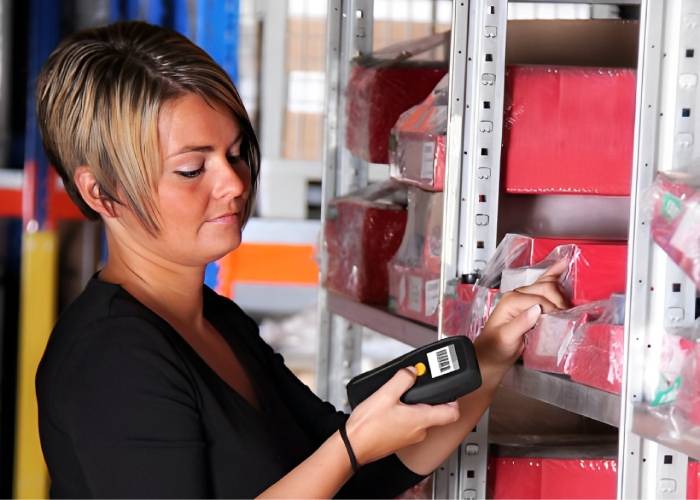
The Stocktake function within MobileREX allows Retail Express users to perform fast, accurate inventory counts using Android PDA barcode scanners. Scan products, validate items instantly, and upload stocktake data with ease — either live or using a local stock file.
MobileREX supports two stocktake methods depending on your workflow:
1. Live Stocktake (Recommended)
With the Live Stocktake function, your scanner communicates directly with Retail Express in real time.
Instant validation: Scan a barcode and immediately confirm the item exists in your system.
On-screen product details: See product descriptions as you scan.
Audible feedback: Beeps indicate valid scans or alert you to unknown items.
Flexible data handling: Upload counts via Wi-Fi or 4G, or save locally for later.
Live Stocktake is ideal for full stocktakes and ensures you always work with the latest product information.
2. Local Stock File Mode (Legacy / Optional)
The legacy Local Stock File mode is still available for situations where you need more control over filtering:
Export a product list from Retail Express and upload it to your scanner.
Typical stock file fields:
Product ID or barcode
Supplier SKU (optional)
Short product description
Why use this mode?
Local Stock File mode is perfect when you want to filter your stocktake by brand, category, or supplier, something not yet available in Live Stocktake. This is ideal for partial stocktakes or counting specific product groups.As you scan:
Valid items: confirmation beep + description on screen
Unknown items: warning beep + on-screen message
Note: Filtering options may be added to Live Stocktake in a future update.
Counting Options
MobileREX supports two scanning modes:
Single Scan Counting – each scan counts as 1 item.
Quantity Entry Mode – enter a specific quantity after each scan, ideal for bulk items.
Uploading Stocktake Data
After counting, your stocktake data can be:
Uploaded via Wi-Fi
Uploaded via 4G mobile network
Saved locally on the scanner for later upload (most common)
The scanner produces a REX Counts file, which is imported into the Retail Express Wireless Excel Scan Tool. This tool compares your scanned counts with the current stock in Retail Express and highlights any variances, allowing you to confirm and update your system accurately.
Support
Track n Trace supports MobileREX and your PDA scanners.
- Please refer to MobileREX support page – Click Here
For help with the Wireless Excel Scan Tool, please contact Retail Express


